


Last friday I collided to quite frustrating moment while doing user import to clients Midgard site.
I created a simple import script to parse the old data from CSV and insert them as Midgard persons. After the script runned for a while I started seeing errors that the MySQL wasn't responding. Checked the server and realized that all disks were mounted as read-only and I couldn't mount them back. So after weekend of strugling with the server we decided with the hosting company to move all the data to new server.
After this I made some minor modifications to the import script so it sleeps 2 minutes after every 250 imported users. And monitored the server all the time. After 5hours of importing everything was ready and the server is still doing ok.
So just a small advice to anyone who has to do big imports (over 18k objects), add some sleep time to the import script so the server can take a deep breath once in a while.
on the next Midgard dev meeting I'll try to do this again on a development server and trace for memory leaks.
Crash and burn
Posted on 2008-09-02 15:36:28 EEST to Midgard Programming Php.
Midgard Textmate bundle
Posted on 2008-08-07 21:01:38 EEST to Midgard Programming Midcom.
For quite a while Joonas and I have planned to do a Textmate bundle for Midgard CMS to fasten and ease the code development and work as a reference to the thousands of methods MidCOM and Midgard has.
Finally last night we just decided to put the project on properly and uploaded it to GitHub.
Today I added (and adding right now) quite alot of the basic methods.
Here's a screenshot of shortcuts for the Query Builder.
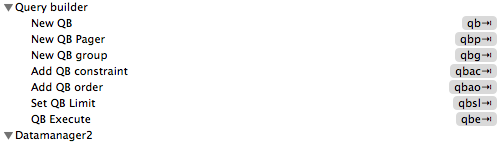
with these methods even complex queries can be built lightning fast. We will be adding more stuff as time goes by.
New ACL Editor for midgard
Yesterday I go the version 1.0 of the new ACL editor ready for Midgard
Here's a screenshot:
The graphics will be changed and the Group selection box will be changed to searchable menubox widget (Which I will create next).
Basic idea was to make the permission assigning easier with cleaner looks than the older version. The blank boxes mean "Not Set (Inherited), green and red arrows mean allowed/denied. Status is changed by clicking the boxes.
It is currently only in midcom trunk, but will be backported to Branch 2.8 latest on monday.
Few new widgets released this week
Posted on 2007-09-14 23:58:43 EEST to Midgard.
I've putted together few new widgets for midgard dm2 in the past month.
Short list:
Short list:
- Positioning widget
Now one can position objects with either address,map or coordinates through simple interface.
More about this can be read on Henri's blog. - A multipurpose Chooser widget
With easy configurations you can use this widget to search for all kinds of DBA objects inside your site.
It's packed with configuration options but one can also be lazy and let the widget decide what fields to be shown
from selected type and how. - Added creation support for the Chooser widget
Now one can even create new objects through the widget if the results don't satisfy.
More about this can be read from Henri's blog. - Tag selection widget
This is a visual way of handling tags on objects. (I must post some screenshots about this...) - FCKeditor widget
I started adding other WYSIWYG editor to midcom. Currently midcom uses TinyMCE
Maemo Community Calendar
Introduction
I've been developing a browser based community calendar for maemo users. It is done on top of midgard.The original baseline was:
"The idea of the project is to build a web-based calendaring application for the Maemo community. GPL-licensed OpenPsa Calendar group calendaring application is used as the basis. The project focuses on adapting the calendar user interface to fit the Maemo devices (Nokia 770 and N800), taking into account the screen resolution and limitations like difficulty of drag-and-drop with the stylus. The worldwide nature of the Maemo community must also be taken into account by adding good timezone awareness."
Current layout still has a lot of improvements to come, mainly the events need to look nicer and the windows
need to look more like windows.
The calendar will be published to public for beta testing in the near future.
Current features
- Timezone switching- Shelf (way to move events)
- Buddylist
- Calendars of buddies
- Tags
- Profile editing / publishing
- Multiple views (year,month,week,day)
In action
As you can see from the firt screenshot, it tries to render the overlapping events nicely.The multi day events are most likely to move to a separate space, so they don't fill precious space.
The panel
Calendars
This is where you can toggle the visible calendar layers on
current view. You can also add new tags and edit the existing ones. currently no removing of tags is implemented.
If you want to change the color of the layer, when editing or creating, click the brush icon under the text field
to get a color picker which you can use with your styles to find a better color. You can also write the new color code
to the textfield.
Buddylist
This is where you manage your buddies. You will see the calendars of all your buddies.
Here you can also add/delete buddies and approve new requests from other persons.
When you add a new buddy it goes to list with unapproved status (red borders)
When you have new buddy requests you have the options to deny or approve the request
When you have approved the buddy request you can view the persons public profile
Profile
Here you can view/edit/publish your own account details
Shelf
You can send events to shelf through their toolbar.
This is shown later on this documentation.
Views
Currently we have four views which you can change with the magnifier icons on the header toolbar.
- Year view
- Month view
- Week view
- Day view
Create new event
First click on a hour cell under the day where you want your event to be created. Window will come up
where you fill in the details of the event.
Event toolbar
Each event has a toolbar which is used to perform different actions to that event.
You can open the toolbar from the events right top corner.
Event moving
When you want to move events to different locations you can collect them to the Shelf panel.
From there you can delete all shelfed items, clear the shelf or select event and drop it to new location.
First you have to open the events toolbar you want to move then select "To shelf" option from the toolbar.
The event appears to the shelf and disappears from the view.
After the events you want are in the shelf you can browse to any date you want and drop the event there.
In this screenshot I've selected the event in the shelf by clicking it and the I clicked a other hour cell
on different day and got event edit view with the new dates and times.
Then save the changes and you'll see the selected event to disappear from the shelf and appears to the new location
on the view.
Timezones
When you change the timezone from the dropdown on the header toolbar the view updates automatically and shows the events in the selected timezone.
All events are saved in UTC so every user see the events according to their own timezone settings.
Upcoming features
The calendar development will continue as soon as possible. There are many features
that still need to be added.
Here are some of the planned features
- Read-only community calendar that is included on every users view. This would show events that are happening
globally in the Maemo community.
- Calendar feeds, both importing and exporting
- Possibility for users to fetch their garage project timelines to the calendar, and publish this to their buddies.
- Ganttchart/Timeline like view mainly for the projects
- Automated timezone switching based ie. on the users plazes account
 maemo
maemo Been sick since last monday...
This kind of a flue I haven't got before which just sticks in me and gets worst everyday...
Have tried all kind of meds and voodoo but nothing seems to work.
Also last night I finally got the timezone support in to the calendar application.
Everyone in the community see the events according to their own timezone.
Next step is to attach the positioning library so if one travels with the calendar it automatically changes the view to the local timezone.
Also the Shelf -concept in moving/mass editing events proofed to be pretty nice.
With few clicks one moves the events to shelf from the current view and then is able to locate a new position for the event on any of the views (year,month,week,day), select the event from the shelf and click to the view on a position he wants the event to move to.
What still must be done in the calendar is the overlapping events and resource conflict checking. This was working in some level on older events which were created with datamanager1, but now when using datamanager2 I have some problems catching the errors on different situations...
I'll get some screenshots of the application next week, when it goes to larger testing before publishing.
Now back to bed and try to get some sleep.
Have tried all kind of meds and voodoo but nothing seems to work.
Also last night I finally got the timezone support in to the calendar application.
Everyone in the community see the events according to their own timezone.
Next step is to attach the positioning library so if one travels with the calendar it automatically changes the view to the local timezone.
Also the Shelf -concept in moving/mass editing events proofed to be pretty nice.
With few clicks one moves the events to shelf from the current view and then is able to locate a new position for the event on any of the views (year,month,week,day), select the event from the shelf and click to the view on a position he wants the event to move to.
What still must be done in the calendar is the overlapping events and resource conflict checking. This was working in some level on older events which were created with datamanager1, but now when using datamanager2 I have some problems catching the errors on different situations...
I'll get some screenshots of the application next week, when it goes to larger testing before publishing.
Now back to bed and try to get some sleep.
Midgard multilang setup
Posted on 2007-03-08 07:25:00 EET to Midgard.
I needed to create a site with multiple languages and decided to use midgards new multilang system for it.
I encountered few problems along the way so I describe what I did, for everyone who would like to use the multilang feature.
First of I created a normal site (at this point I wasn't aware there will be other languages also) ie. http://multilang-example.com with create-sitegroup & create-host scripts (One could also use midgard sitewizard).
After that I created the sitestructure just like I would do on any site.
And don't forget to set virtual host for your site. (ie. use datagard to create new virtual host)
Before you can use multilang:
- Get the latest midgard and midcom
( Install a hotfix for your midgard-core)
After installing the hotfix (I used apt-get update , apt-get --reinstall install libmidgard9) you have to edit your hosts config a bit.
This can be done in many ways, but I used spider-admin and browsed to my new host's ROOT page and edited the code-init element by adding a new row to the top:
$GLOBALS['midcom_config_local']['i18n_multilang_strict'] = false;
And I also made the site's url change automatically to default lang if no lang had been determined in the url: (This is added to the same page element after $_MIDCOM->codeinit(); )
---CODE
$curr_url = $_MIDCOM->_parser->fetch_URL();
$default_lang = "en";
$base_url = "http://multilang-example.com";
$hosts = $_MIDCOM->i18n->get_language_hosts();
foreach($hosts as $k => $host) {
if($host->prefix != "" && $host->lang == 0) {
$default_lang = str_replace("/","",$host->prefix);
}
}
if($curr_url == $base_url) {
header('Location: '.$curr_url.$default_lang.'/'.$suffix);
exit();
}
---/CODE
After this I created new hosts for each language (also for my default language) with spider-admin, giving each host the same style,main page and sitegroup than the original. Only difference at this point to the original is the prefix:
- http://multilang-example.com/en
- http://multilang-example.com/fi
- http://multilang-example.com/se
Then you need to set the proper lang id for these hosts. For this I used phpMyAdmin, but one could use any sql access methods to update the host rows.
First off find the lang id's you want to use by searching the midgard_language table in database (explained in the multilang doc at Midgard site).
So edit your newly created hosts and set the lang column to the corresponding lang id. You want to keep your default lang to 0 (in this case the english), so you would end up with something like this (having four hosts with different prefixes):
- http://multilang-example.com (Lang 0)
- http://multilang-example.com/en (Lang 0)
- http://multilang-example.com/fi (Lang 44)
- http://multilang-example.com/se (Lang 151)
Now you are ready to go.
Just log in to your default lang site and on another browser window (or tab) login to some other lang. And start editing...
You will see that the site structure is the same in all of the sites and when you edit your default (lang 0) site you get that same content on the other languages also.
If you don't wan't to show untranslated content in other sites, just set the previous config row to $GLOBALS['midcom_config_local']['i18n_multilang_strict'] = true;
Hopefully this helps someone and saves him the few days I struggled with this to get it working.
If I have forgotten something or find an easier way of doing things, I'll let you now.
I encountered few problems along the way so I describe what I did, for everyone who would like to use the multilang feature.
First of I created a normal site (at this point I wasn't aware there will be other languages also) ie. http://multilang-example.com with create-sitegroup & create-host scripts (One could also use midgard sitewizard).
After that I created the sitestructure just like I would do on any site.
And don't forget to set virtual host for your site. (ie. use datagard to create new virtual host)
Before you can use multilang:
- Get the latest midgard and midcom
( Install a hotfix for your midgard-core)
After installing the hotfix (I used apt-get update , apt-get --reinstall install libmidgard9) you have to edit your hosts config a bit.
This can be done in many ways, but I used spider-admin and browsed to my new host's ROOT page and edited the code-init element by adding a new row to the top:
$GLOBALS['midcom_config_local']['i18n_multilang_strict'] = false;
And I also made the site's url change automatically to default lang if no lang had been determined in the url: (This is added to the same page element after $_MIDCOM->codeinit(); )
---CODE
$curr_url = $_MIDCOM->_parser->fetch_URL();
$default_lang = "en";
$base_url = "http://multilang-example.com";
$hosts = $_MIDCOM->i18n->get_language_hosts();
foreach($hosts as $k => $host) {
if($host->prefix != "" && $host->lang == 0) {
$default_lang = str_replace("/","",$host->prefix);
}
}
if($curr_url == $base_url) {
header('Location: '.$curr_url.$default_lang.'/'.$suffix);
exit();
}
---/CODE
After this I created new hosts for each language (also for my default language) with spider-admin, giving each host the same style,main page and sitegroup than the original. Only difference at this point to the original is the prefix:
- http://multilang-example.com/en
- http://multilang-example.com/fi
- http://multilang-example.com/se
Then you need to set the proper lang id for these hosts. For this I used phpMyAdmin, but one could use any sql access methods to update the host rows.
First off find the lang id's you want to use by searching the midgard_language table in database (explained in the multilang doc at Midgard site).
So edit your newly created hosts and set the lang column to the corresponding lang id. You want to keep your default lang to 0 (in this case the english), so you would end up with something like this (having four hosts with different prefixes):
- http://multilang-example.com (Lang 0)
- http://multilang-example.com/en (Lang 0)
- http://multilang-example.com/fi (Lang 44)
- http://multilang-example.com/se (Lang 151)
Now you are ready to go.
Just log in to your default lang site and on another browser window (or tab) login to some other lang. And start editing...
You will see that the site structure is the same in all of the sites and when you edit your default (lang 0) site you get that same content on the other languages also.
If you don't wan't to show untranslated content in other sites, just set the previous config row to $GLOBALS['midcom_config_local']['i18n_multilang_strict'] = true;
Hopefully this helps someone and saves him the few days I struggled with this to get it working.
If I have forgotten something or find an easier way of doing things, I'll let you now.